Start From What the QR Code Does, Not How It Looks
A QR code in a loyalty program is a bridge from a physical spot to your sign-up page. It works when the customer knows why they're scanning and what happens next: they join, see the card, then add it to Apple Wallet or Google Wallet with no merchant app to download. A plain black-and-white square near the register isn't enough on its own — the line next to it, and the moment you show it, decide whether anyone actually uses it.
Pick one page for one clear goal. A sign-up code shouldn't lead to a general account page or a product list if your goal is building membership. With Waya, the code can start a loyalty-card journey, but you still need to show a specific benefit, like 'Scan to start your stamps today.' Don't say that scanning guarantees the card gets added or a reward gets granted if there's a further step or condition.
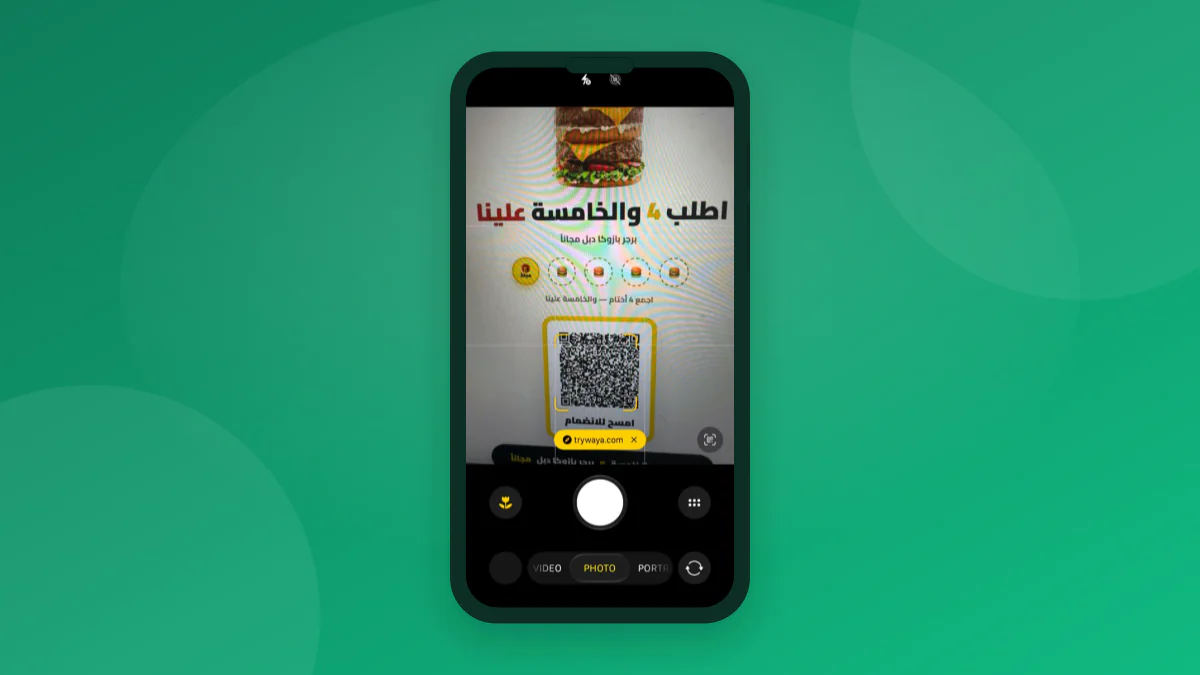
| Placement | Best timing | Advantage | Watch out for |
|---|---|---|---|
| Near the register | Right after payment | A quick explanation | Don't hold up the line |
| On the table | While waiting | More time to scan | Protect it from spills |
| On the receipt | After the visit | A portable reminder | May not get opened right away |
| Storefront window | Before entry | Wider reach | Pair it with a clear benefit |
Design the Sign Around the Customer's Quick Decision
Put a short line above the code that explains the payoff, and one action below it: 'Scan and join.' Don't crowd the scanning area with the fine print — move detail to the landing page and keep the promise honest. Use strong contrast and clean white space around the code, and don't place a logo or decoration where it weakens readability. A beautiful design the camera can't read isn't a sign-up tool.
Size the print for the distance customers will actually stand at. A small code on a table may work up close but fails if the customer is behind a barrier or the lighting is poor. Print a test copy before you run the full batch, and photograph the code from several angles with an ordinary phone camera. Don't rely on a single screenshot from the designer — test the real paper and the real surface it will sit on.
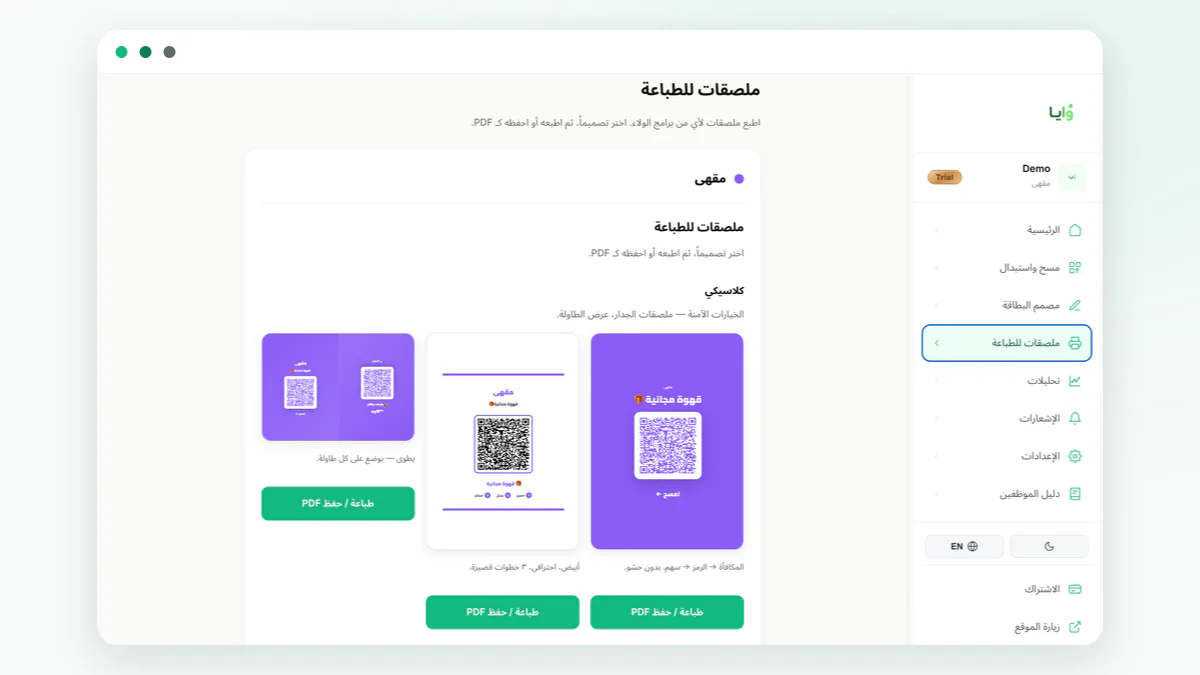
- State one clear, honest payoff.
- Keep a clean margin around the code.
- Use strong contrast with no distracting gloss.
- Never stretch or crop the code.
- Print a test page before the full run.
Test the Scan Under Real Store Conditions
Test from more than one phone and more than one mobile network, and in both daytime and evening lighting if your store's light changes a lot. Try scanning from a normal distance and from someone holding bags or a cup. Notice where the camera opens and when it catches the code, then fix the actual cause — sign height, a glossy wrapper's glare, or a broken link — instead of assuming the customer just didn't want to join.
After the page opens, finish the sign-up and save the right pass on a compatible device, then run a real test of earning credit. Separate a scanning failure from a page failure from a staff-process failure — each needs a different fix. Don't promise a connection that's always available, since the network and the device are outside your control. Prepare a fallback that tells the customer how to get back to the sign-up link if it doesn't work in the moment.
- Scan up close
Confirm the link works and the square reads clearly.
- Scan from a real distance
Test where customers actually stand, not the designer's desk.
- Test the page
Complete sign-up like a first-time customer would.
- Test the next visit
Confirm the card's own code works at the register.
Write the Cashier's Role Without Turning It Into a Pitch
The best moment to mention the QR code is when the customer has an obvious reason to hear about it, not to every person who walks near the table. Teach staff a line like: 'Our program gives you a stamp on this visit — you can scan the code and add the card to your wallet.' Then leave the decision to the customer. Don't ask for personal details the flow doesn't need, and don't hover while they finish the screen on their phone.
When a customer asks why there's no app, explain that Waya lets them add the card straight from the sign-up page to Apple Wallet or Google Wallet on a compatible device, with no merchant app involved. If the scan doesn't work, a staff member can point to the code's location or help at a moment that doesn't hold up the line. The goal of training is less friction, not a higher sign-up count by any means necessary.
Connect the Join Code to How Credit Gets Earned and Redeemed
The code a customer scans to join isn't necessarily the same code they'll later show a staff member. Once the card is saved, it displays its own customer code that a cashier can scan to record a transaction. Explain that difference to the team so nobody tries to scan the sign-up poster at every purchase. Decide too how staff should handle a customer who wants to join after the invoice is already closed, and whether that first visit earns credit under your policy.
Waya runs points, stamps, cashback, and manual rewards, and a staff member can use an ordinary phone with no POS integration required. That doesn't excuse skipping a verbal confirmation for the team: 'Stamp recorded' or 'Reward redeemed,' then review whichever cases need a manual correction.
- Tell join and member codes apart clearly.
- Decide when a first-visit customer earns credit.
- Confirm the action out loud to the customer.
- Give a manager a path to correct an error.
- Review exceptions against a published rule.
Review Results, Then Improve One Thing at a Time
Track scans or sign-ups where you can, but read them in context: how many customers actually passed through the branch, did staff mention the program, and did the journey stall on the page? Waya's live activity analytics can help you see program activity, while a cashier's observation often explains the friction better than a number alone. Don't compare a busy branch to a quiet one without accounting for the difference in foot traffic and opportunity.
Before reprinting, run a short checklist: the link is correct, the code is readable, the promise matches the rule, and the path has been tested on the right devices. After a couple of weeks, change one thing — sign height or the call-to-action line — then compare over a similar stretch. QR code sign-up keeps the start of a Waya card simple with no app required, but the value of that simplicity shows up once a shop pairs it with steady training and a reward customers actually understand.
Frequently asked questions
Can I use one QR code across all my branches?
You can if the sign-up experience is identical everywhere, but separating codes by branch can help you see where people are actually joining.
What's the right size for a QR code?
There's no single size — test the printed version from the real scanning distance, surface, and lighting you'll actually use.
Does the customer need to install an app before scanning?
No, they can open the sign-up page from the camera, then add the card to a compatible wallet.
What do I do if the code doesn't open?
Check the print, the link, and the network, then give the customer a way back to the sign-up page without promising an instant fix.